 DevBoxer Docs
Scheduled Tasks
Schedule tasks to run at a specific time in the future
Scheduling a task if helpful when you want to run a task once at a specific time in the future. See Automations for setting up recurring tasks.
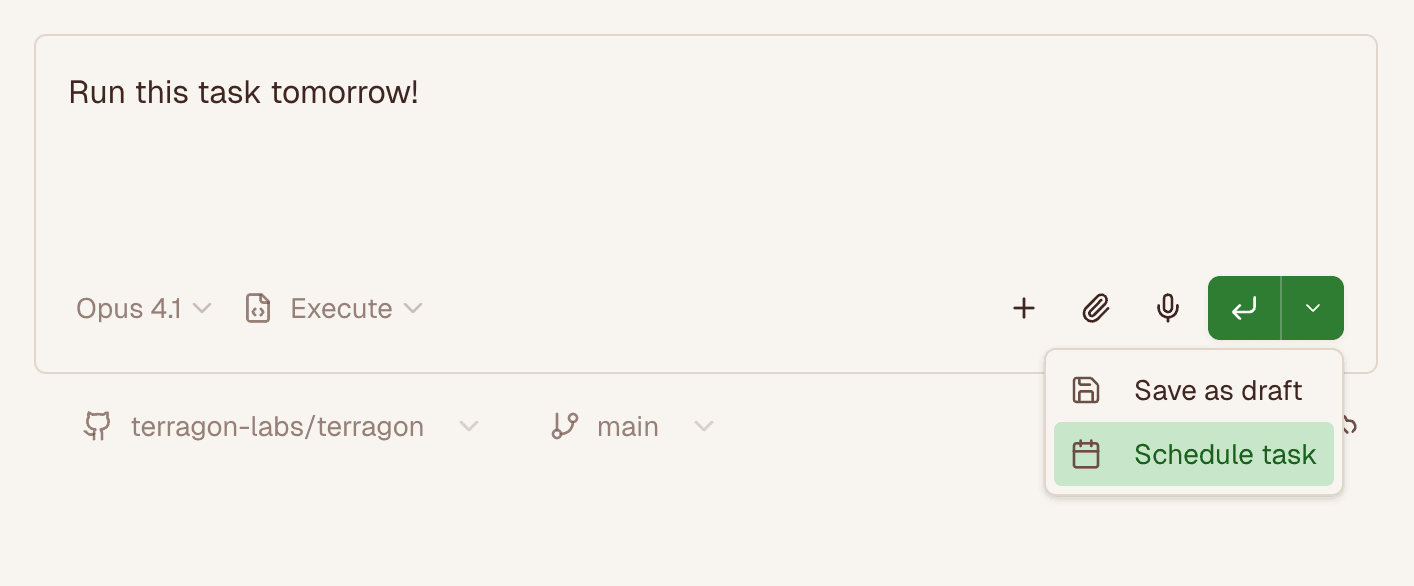
Creating a Scheduled Task
Start writing a prompt as usual from Home
Click the dropdown arrow next to the submit button
Select
Schedule TaskSelect a time in the future to run the task
Click the submit button to run the task
Canceling a Scheduled Task
Scheduled tasks can be canceled up until they are about to run.
Cancelling a scheduled task will simply stop it from running at the scheduled time. You can send a follow up message to the task to ask the agent to kick it off again.
Click on the scheduled task from your task list
Click the cancel button to cancel the task
Running a Scheduled Task Immediately
If you change your mind and want to run the task immediately, you can click the run now button.
Click on the scheduled task from your task list
Click the run now button to run the task immediately